01
What receipt OCR actually captures
A useful receipt scanner returns the fields that expense workflows depend on. The scanner reads the merchant, the date and time, the currency and the totals, then attempts the individual purchase lines.
- Merchant name and location details
- Date, time and payment method when printed
- Subtotal, sales tax, tip and final total
- Currency detected from the receipt
- Line items and quantities on itemized receipts
02
Why the review step matters
Faded thermal print, foreign scripts, and cluttered restaurant bills can produce misreads. A well-designed scanner shows every extracted field so you can correct anything before it hits your budget or your report.
03
From scan to expense in one flow
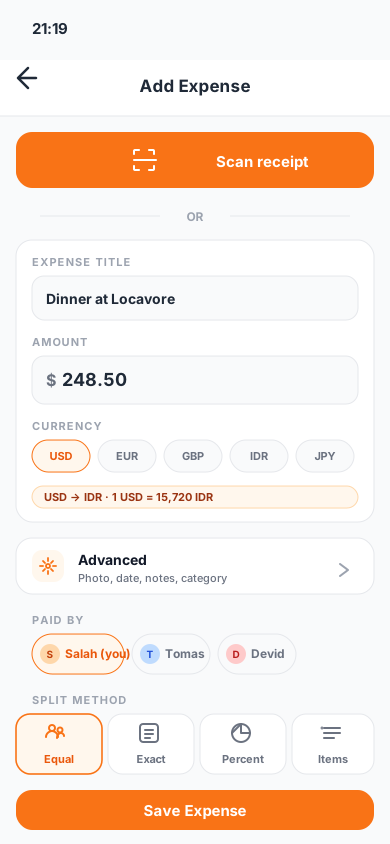
In Monira, the scanner is only the first step. Extracted data becomes an editable expense with category, budget impact, project or trip attribution and export options.
- Send the scan to a personal or business profile
- Tag a trip, project or group
- Split the receipt line by line with participants
- Export to PDF, Excel or CSV when needed
04
Privacy and accuracy expectations
Every scanner has an accuracy range. Monira does not publish a single accuracy number because it depends on receipt quality. Review each scan, keep the original image, and consult the App Store privacy label before installing any receipt app.
05
How to test a receipt OCR app before relying on it
Do not judge receipt OCR from one perfect supermarket receipt. Build a small test set that resembles your real spending, then compare the extracted fields with the paper originals. Include a faded thermal receipt, a restaurant bill with tax and tip, a multi-page invoice, a foreign-currency purchase and one receipt with several line items. Check how quickly you can fix a wrong total or date as well as how often the first result is correct.
- Verify merchant, date, subtotal, tax, tip and final total
- Check whether the original receipt image stays attached
- Correct one field and confirm the edit is saved
- Export the test expenses and inspect the resulting file
06
Common receipt-scanning edge cases
Long receipts, crumpled paper, glare, low contrast and handwritten tips are difficult for every OCR engine. Improve the result by flattening the paper, using even light and keeping all four corners inside the frame. If a receipt is unusually long, capture the most important totals clearly and review the line items before saving. A transparent correction workflow is more useful than an app that silently guesses.
07
Try Monira after the walkthrough
The five included scans are enough to test a real receipt, one restaurant bill and one travel purchase. If the extraction quality and the review step fit your workflow, keep the app and add more scans.
Questions
What people usually ask
Is OCR enough to trust an expense app?+
OCR is the starting point. What matters is how the app handles corrections, categories, exports and privacy. Always confirm the extracted fields before saving.
What is the difference between OCR and AI receipt scanning?+
OCR reads text on the receipt. AI receipt scanning adds structure so the merchant, dates, totals, taxes and line items are mapped to expense fields, not raw text.
How accurate is Monira's receipt scanning?+
Accuracy depends on the receipt. Faded, wrinkled or non-standard receipts may need more edits. Every extracted field is shown for review before saving.
Where does the scanned data go?+
The extracted data is used to create an expense in Monira on your iPhone. See the App Store privacy label for details on data handling.
Verified sources